Using the Apple Vision Pro for SIM RACING

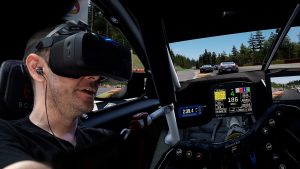
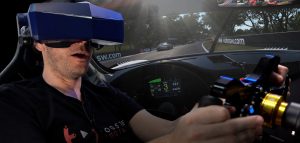
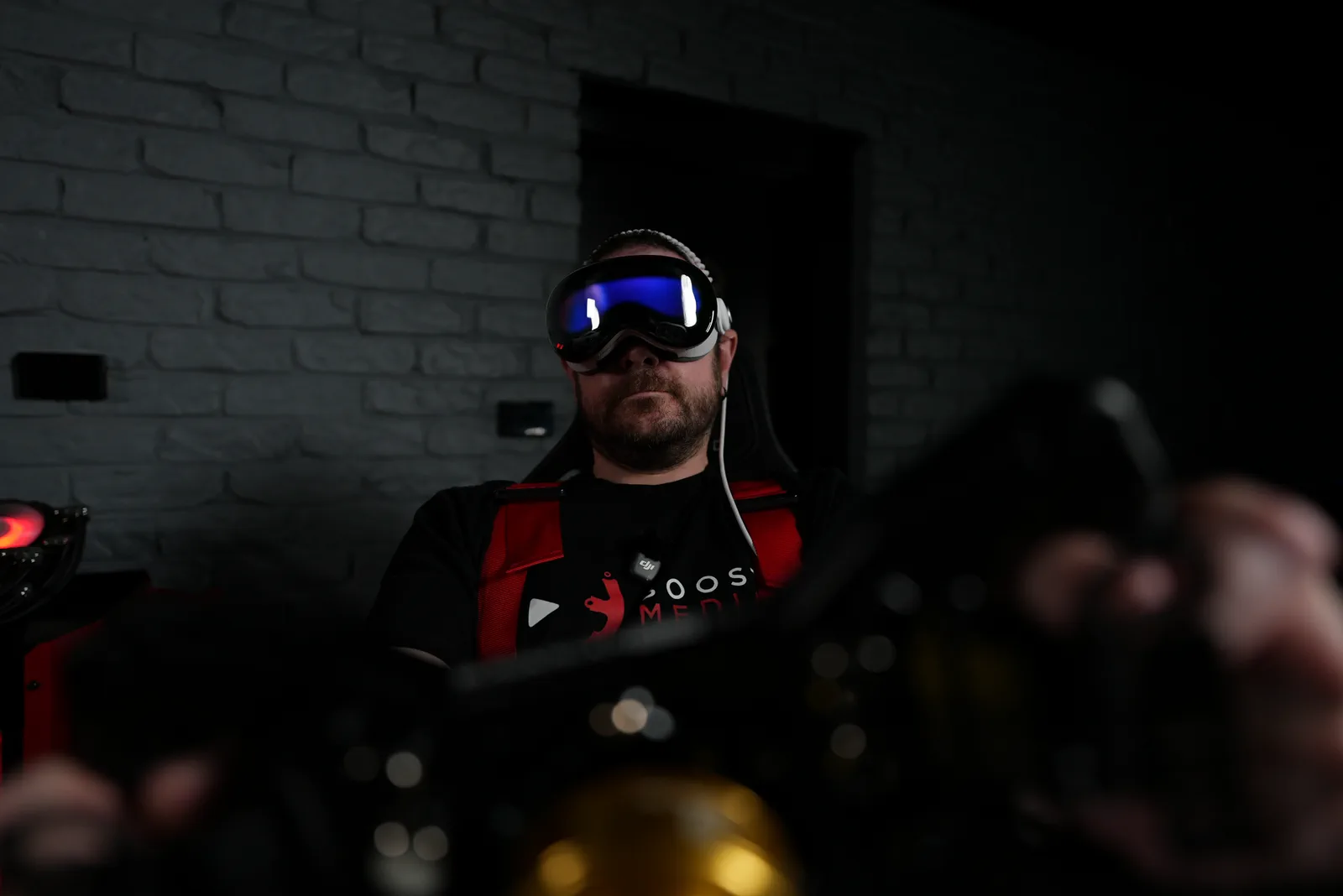
We tore down our triple 65-inch 4K rig, spent AU$7,500 on an Apple Vision Pro, and set out to find whether Apple’s headset has anything real to offer sim racing. Here’s what we found.

In our recent high-end VR headset comparison we said we’d finally reached the crossover point, where VR makes genuine sense as a full replacement for triple screens rather than a novelty you pull out once a month. This is us committing to that idea properly. The rig you’ll see in the video is set up for VR and nothing else, and we’ll be living with it that way for the next couple of months.

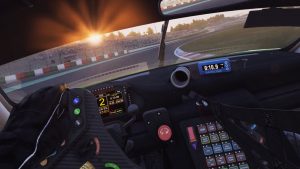
The Vision Pro was the part of that research we were most curious about. Not because it’s a sim racing product, because it very clearly isn’t, but because of what it promises: a mixed reality experience where you’re fully inside a stereoscopic 3D world and can still see your own hands, your own wheel and your own feet, and reach out and interact with the room around you. That’s something we’ve chased on triple screens for years and never properly solved.

Two things worth saying up front. This is not a buying recommendation, and we’d discourage anyone from spending this kind of money on a headset just for sim racing right now.

Who is this headset for?

Almost nobody, and that’s fine

Before getting into how any of it works, it’s worth being blunt about where this sits. At AU$7,500 the Apple Vision Pro costs more than the entire wheel, pedal and cockpit setup most people are racing on, and it does a worse job as a sim racing display than headsets costing a fraction of that. If you’re shopping for a VR headset to race in, this isn’t the one, and we’d point you straight back at our high-end headset comparison instead.

Where this article is genuinely useful is if you already own a Vision Pro and want to know whether you can race with it, if you’re trying to work out what mixed reality actually adds to sim racing beyond the marketing, or if you’re interested in where this technology is heading. The answer to the first question is yes, with some caveats and a fair bit of setup. The answer to the second turned out to be far more interesting than we expected.

How Sim Racing with the Apple Vision Pro actually works

Everything is streamed, and that shapes every compromise below

The Vision Pro has no wired PC VR mode and no video input, so it doesn’t behave like a conventional PCVR headset. Instead, the sim runs on your PC and is streamed to the headset over your network using CloudXR. That single fact drives most of the compromises we ran into, so it’s worth understanding before you go any further.

There are two ways to do it, and they’re aimed at different things.

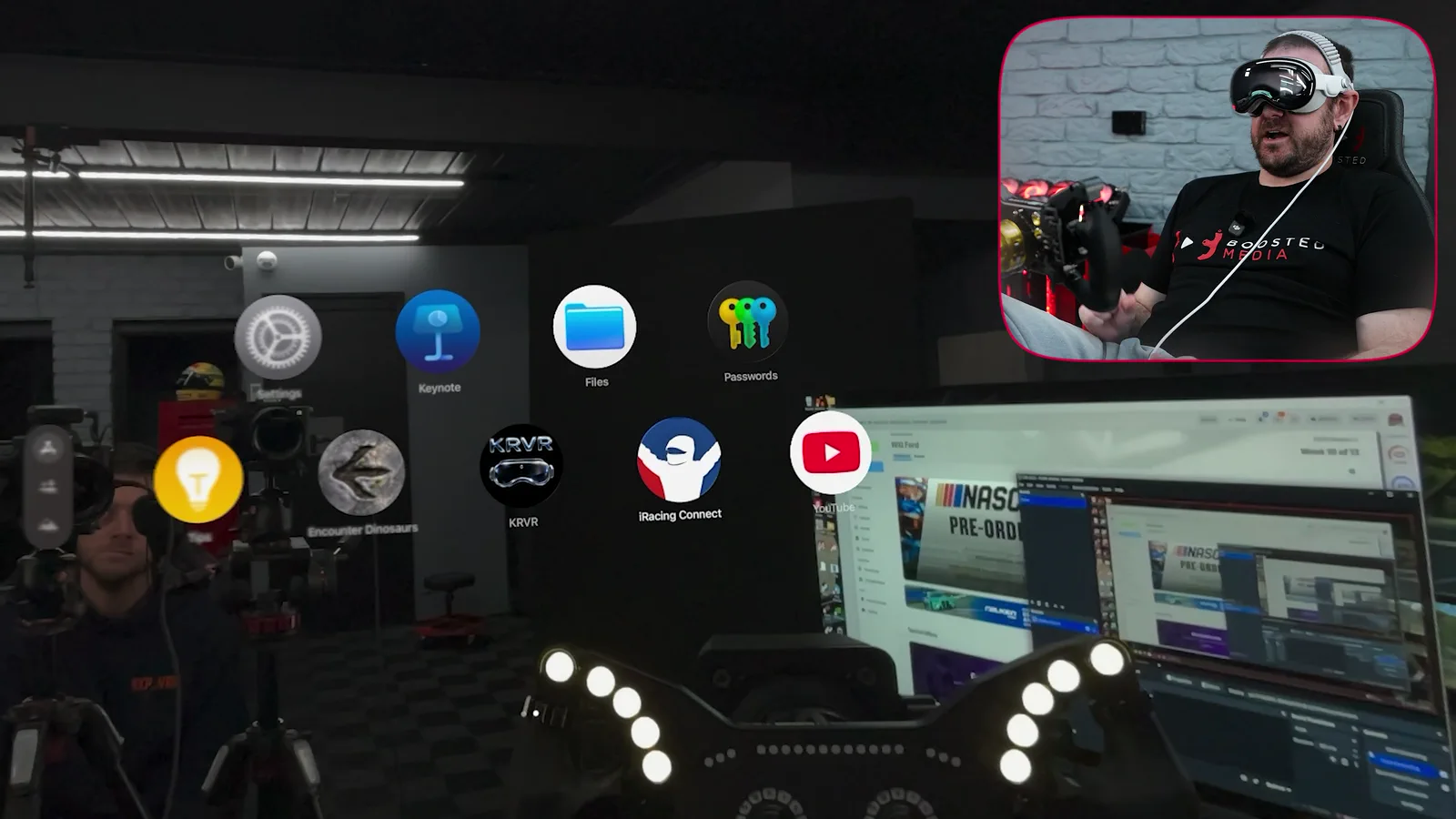
 iRacing ConnectKRVR
What it isiRacing’s own native visionOS appThird-party visionOS app that presents itself to Windows as an OpenXR runtime
Works withiRacing onlyAny OpenXR / PC VR title
Image qualityNoticeably sharperMore heavily compressed
LatencyLowerHigher, and visible in recorded footage
Wheel alignmentAutomatic, and hit and missManual via your in-sim recentre button, and much more accurate
Mixed reality toolsShow hands, show arms, Environment control dialHand discs, ring tuning, freehand masks, hand visibility toggles, Environment control dial

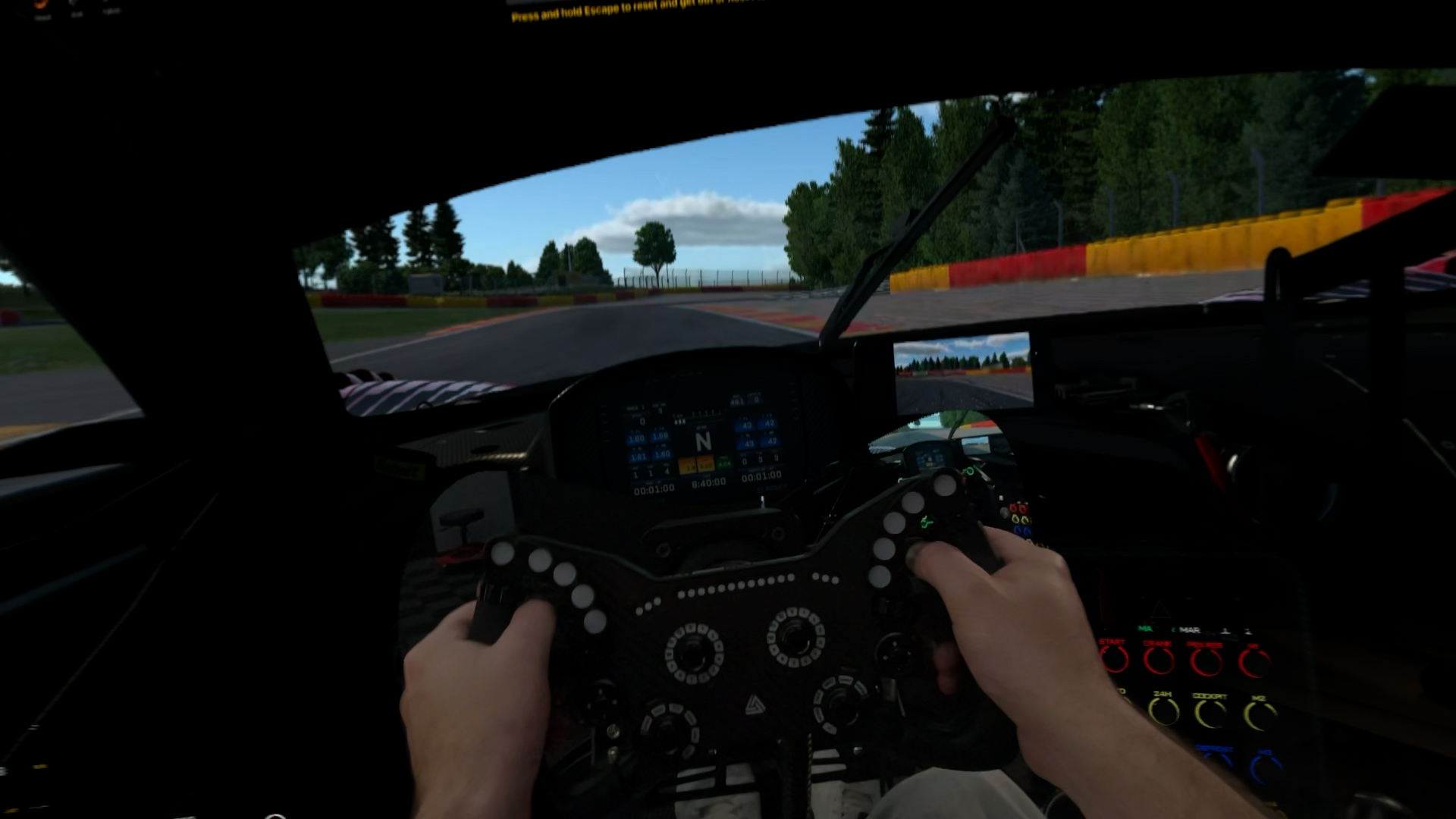
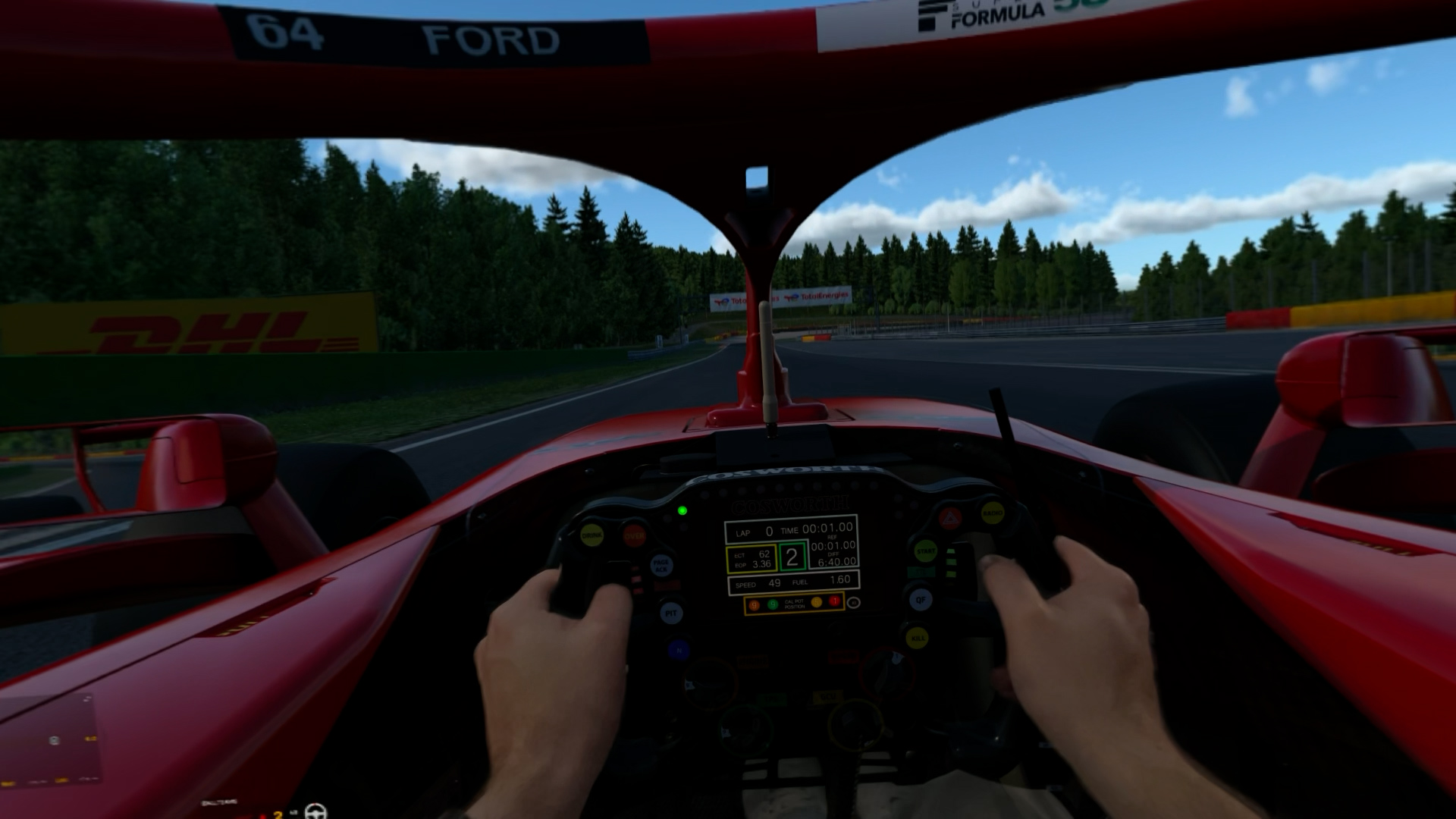
What both give you, and what no conventional VR headset gives you, is the ability to see your real hands, arms, legs and feet inside the virtual cockpit, and to dial the real world in and out on the fly using the Digital Crown on top of the headset. Wind it all the way in and you’re fully in the sim. Wind it out 20 or 30 per cent and you can still see your seat bolsters, your feet and enough of the room to reach for a drink without breaking immersion.

What you need to run it

The network matters more than the PC

  • An Apple Vision Pro. AU$7,500 at the time of filming.
  • A fast, low-latency network. This is the part people underestimate. Our sim PC is wired into a 10Gb switch, and the headset runs on a Wi-Fi 6 network with the router sitting on the desk right beside the rig. Anything less could mean you’ll be fighting the compression and latency the whole way.
  • Port and firewall changes. This is not plug and play. We had to open ports and do a reasonable amount of troubleshooting to get a stable stream.
  • iRacing, or any OpenXR-capable sim for KRVR.
  • VR motion compensation if you’re on a motion platform.

The setup trap that cost us a day and a half

Worth knowing before you start, because it’s not documented anywhere obvious. Installing KRVR puts its own OpenXR runtime on the PC, version 6.2.0 at the time of filming, while iRacing Connect expects version 6.0.5. With KRVR installed, iRacing Connect simply stops working, with no useful error to tell you why. If you want to switch between the two apps you’ll need to manage which runtime is active on the PC. We lost the better part of two days to this one.

Setting up and driving in iRacing Connect

The easiest way in, and the better image of the two

The process itself is refreshingly simple once the network side is sorted:

  1. Open the iRacing UI on your PC and set the display mode to CloudXR.
  2. Launch iRacing Connect on the headset. Look at the icon, pinch your fingers, and it opens.
  3. It finds the sim PC on the network automatically. Hit continue and start the session.
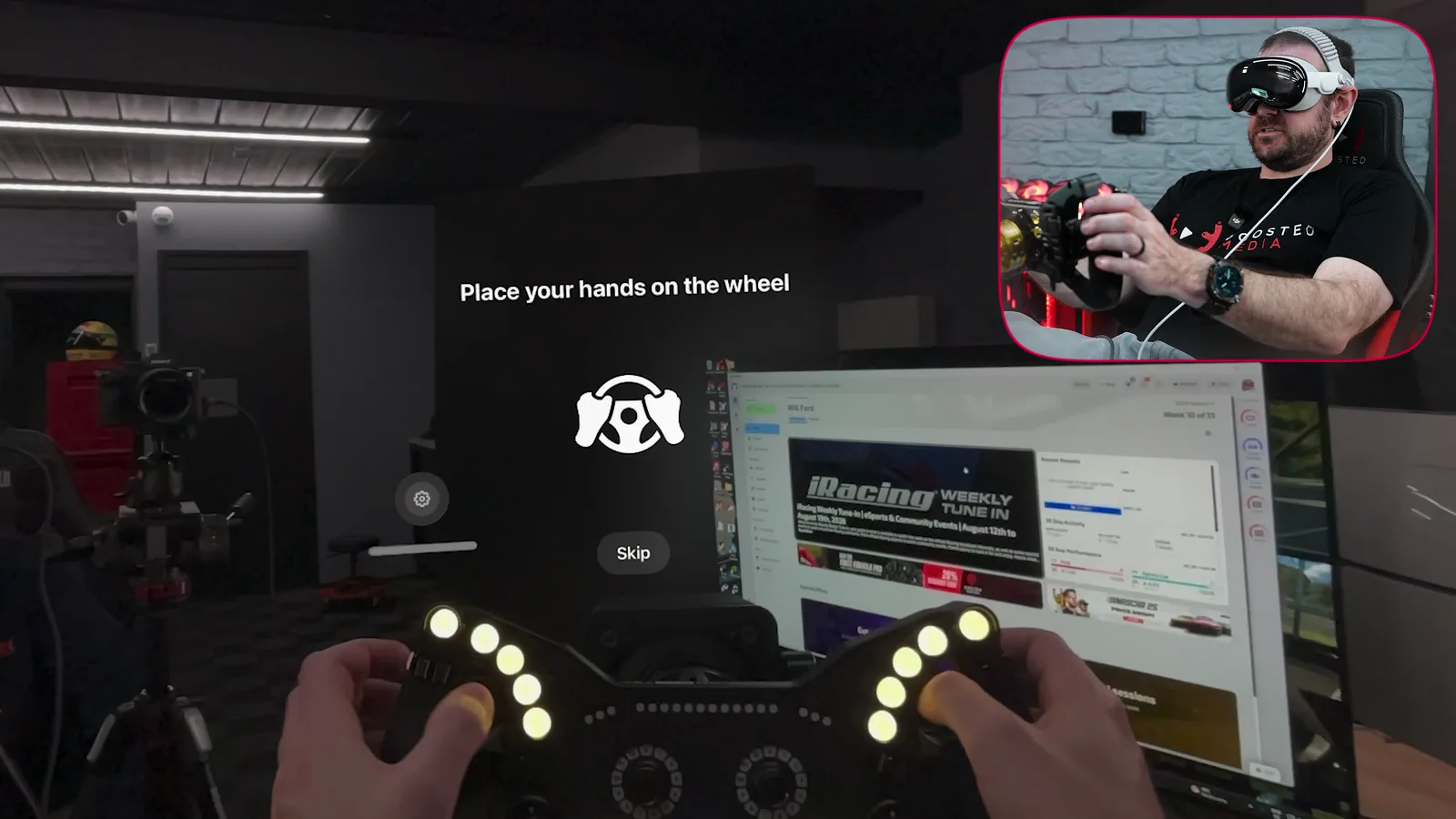
  4. Put both hands on the wheel and rotate it slightly. That’s the entire calibration routine, and it’s how the app maps your physical wheel into the virtual world.
  5. Launch the sim, sit square in your seat while it loads, and you’re in.

Once you’re in the car there’s a small settings bar floating in the cabin. Pinch it and drag it up out of your field of view, then set the two options that matter: show hands on wheel, which overlays your real hands onto the virtual rim, and show arms, which extends that to your arms, legs and feet.

Our preference after a lot of experimenting is both of those on, with the Digital Crown dialled out somewhere around 20 to 40 per cent depending on how bright the room is. That’s enough to keep your feet, your legs and the edges of the seat visible without the real world intruding on the track ahead.


Where it falls down

iRacing’s wheel calibration is crude. It’s that single hands-on-and-turn routine and nothing more, so sometimes your hands land perfectly on the virtual rim and sometimes they’re visibly out of position. Recalibrating means backing all the way out through the menus and running it again, with no guarantee the second attempt is any better. It’s very dependent on exactly how your wheel sits in your rig.

Setting up and using KRVR

Far more control, at the cost of latency and sharpness

KRVR is where the mixed reality side genuinely opens up, and it’s the more interesting of the two apps by some margin.

Because it presents itself as an OpenXR runtime, you can use your normal in-sim realign or recentre button to line the virtual cockpit up against your physical wheel. It’s trial and error, but the result is far better than iRacing’s automatic mapping. We got to the point where our real hands were wrapping around the virtual rim almost exactly, which is remarkable when you think about everything that has to work correctly to make that happen.

Double-tapping your wrist toggles the passthrough blend. Note that KRVR overrides the Digital Crown and clamps how far you can dial the real world back in, so pushing past roughly 50 per cent bounces you back to about 55 or 60 per cent. That’s KRVR’s own settings taking priority, not a fault.

Hand discs, ring tuning and merge when close

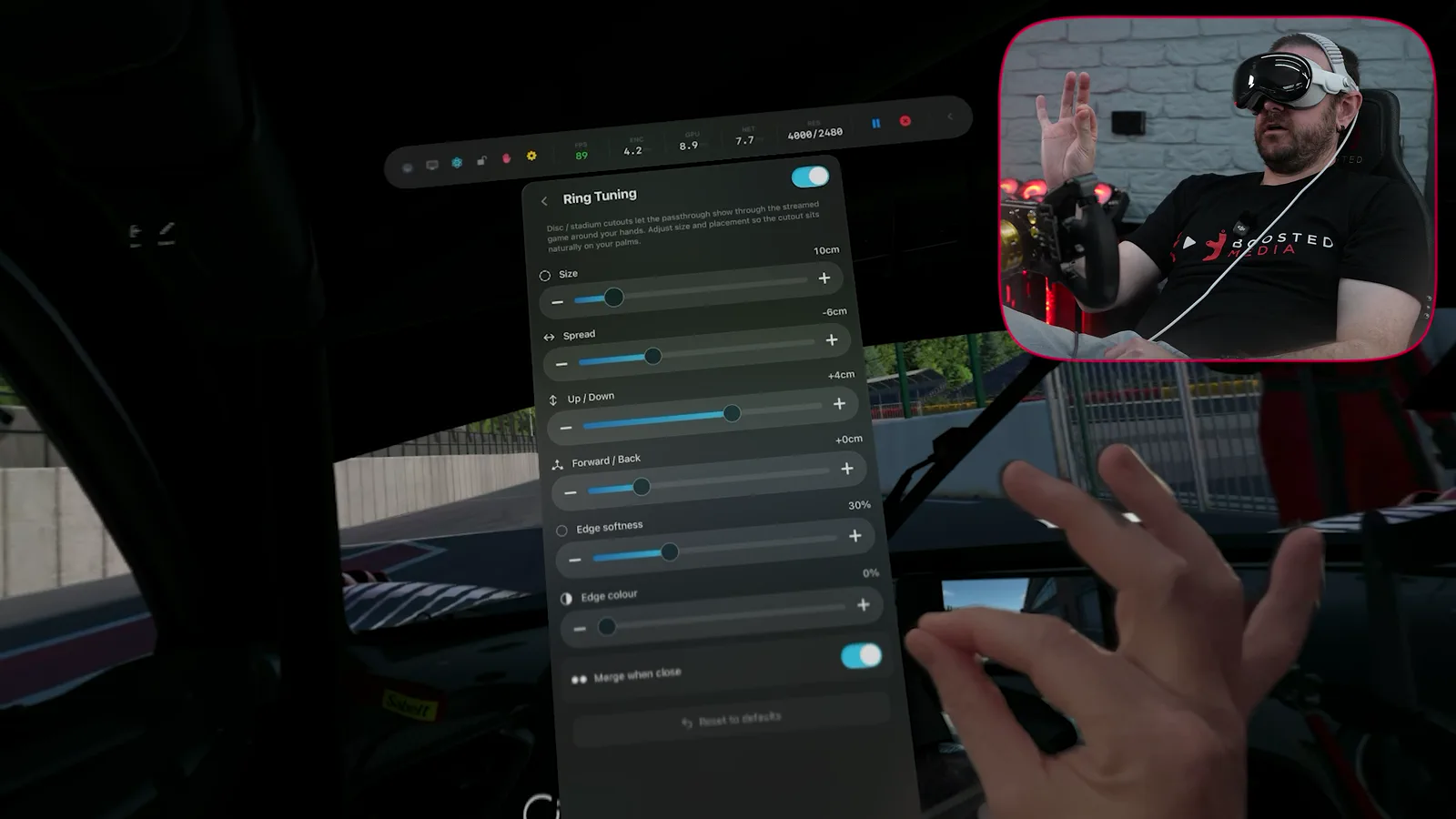
Instead of cutting out the shape of your hands, KRVR can put a passthrough disc around each hand, with sliders for size, spread and vertical position under a ring tuning menu. Get those dialled in and enable merge when close, and the two discs join together when your hands come together on the wheel, which lets you see your actual physical steering wheel through the gap.

That solves two problems at once. It kills the latency between your real hands and the virtual rim, because you’re looking at the real wheel rather than a streamed copy of a virtual one. And when you reach for a physical button on your wheel, your fingers are where your eyes say they are. The trade-off is that the disc sits over the virtual dash, and as you rotate the wheel your hands start to block the parts of the cockpit you need to see.

Every one of these adjustments is made by looking at a slider and pinching your fingers together. It’s easily one of the best interfaces we’ve used for this kind of fiddly, iterative tuning.

Freehand masks

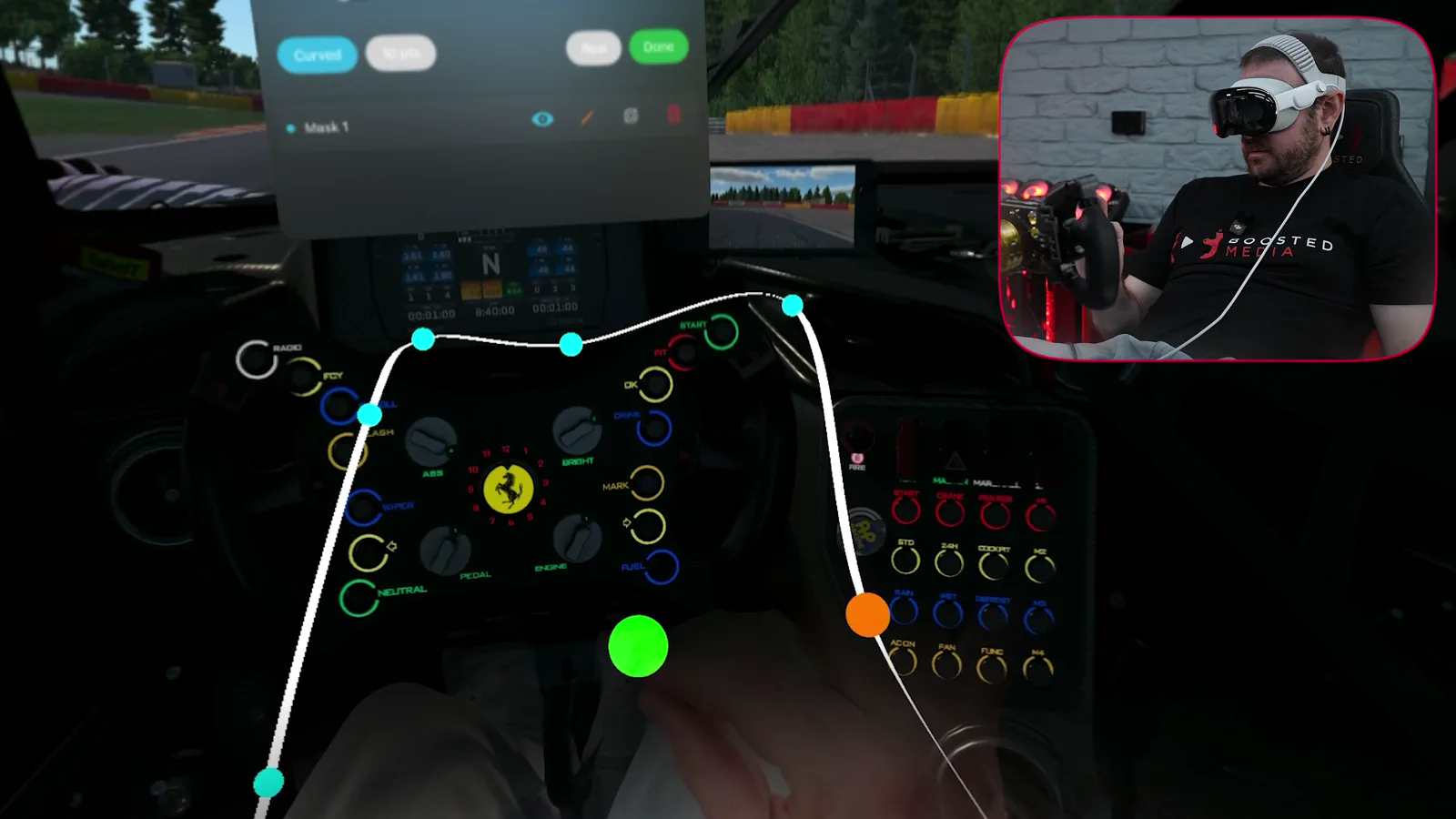
The other option is a mask. You draw a shape in mid-air with your finger, roughly around the area you want to see through, then grab the nodes and drag them until the mask fits your wheel. Enable it and everything inside that shape shows the real world while everything outside stays virtual, so your dash remains visible behind it.

It’s fiddly to draw and a little glitchy to edit, but the concept is exactly right, and it’s the closest anyone has come to solving the mixed reality cockpit problem properly.

The compromise

KRVR carries noticeably more latency and considerably more video compression than iRacing Connect. We’ve spent a lot of time in the settings trying to sharpen the image and haven’t found the right combination yet, but since iRacing Connect manages a much cleaner picture over exactly the same network, we’re confident it’s achievable with more time.

Worth being clear about the latency, because it looks worse on video than it feels in the seat. While driving, your eyes are focused past the wheel and down the road, so it isn’t immersion breaking in the way you’d expect. In recorded footage, where you’re looking straight at the disconnect between the hands and the rim, it’s obvious. That’s a real problem for us as a content channel, and it’s something we’ll need to solve before we start making race videos this way.

Apple Vision Pro on a motion rig

Motion compensation isn’t optional

Any VR headset uses your head’s position to work out where you are in the virtual world. Put that head on a moving motion platform and the two worlds desync almost immediately, and it becomes an unusable mess very quickly.

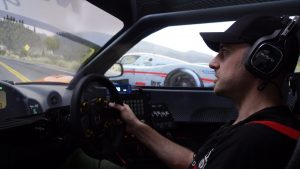
The Qubic System QS-V20 platform in our setup has VR Headway built into its software, which handles this natively. Unlock the platform, press Windows + Shift + O, and the rig runs itself through its full range of motion to map the VR coordinate system and compensate for it in the signal sent to the sim. Sit as still as you can while it does it. Once mapped, it works genuinely well, and we had no meaningful desync.

If your motion system doesn’t have native VR compensation you’ll need third-party software to do the same job, and that adds another layer of latency on top of a stack that already has plenty. Factor that in carefully before assuming this will work on your setup.

NEWSLETTER

Stay up to date with new releases And major updates

Sim RACING
Discount Codes

The limitations that matter most

  • Passthrough camera resolution. You can’t read text well. Not on your monitor, not on your phone, not an incoming message. You can navigate an interface you already know by shape and position, and you can find your way around the iRacing UI if you’re familiar with it, but reading it properly is not happening. This is the single biggest thing that has to improve before any of this becomes a serious recommendation.
  • Latency between your hands and the virtual wheel. Worse in KRVR than in iRacing Connect. Not a problem while driving, a real problem on camera.
  • Streaming compression. The panels themselves are comparable to the Pimax Dream headsets we reviewed recently, but streaming over Wi-Fi compresses the image enough that outright visual fidelity sits behind a wired PC VR headset.
  • Headset weight. It sits well balanced on your head, but it’s heavy enough that engine vibration and motion inputs bounce it around more than you’d like.
  • Gloves. Hand tracking struggles with racing gloves. Calibrating the headset with the gloves already on helps a lot, and plain white gloves would work far better than anything with intricate patterns or detailing, but it’s still a genuine limitation. With patterned gloves you’ll want to rely on masks instead of hand tracking.
  • Screen recording is capped at 720p for anything longer than three minutes, which makes capturing decent footage out of the headset difficult. There are APIs and exposed endpoints that might offer a way around this, and it’s something we’ll be digging into.
  • Bright cockpit elements bleed through. The LEDs on our wheel flicker through the passthrough layer as we move our hands past them.

One pleasant surprise to balance that out: no eye strain. We fully expected to spend every session squinting at fuzzy text and come away with a headache, and it never happened. Our best guess is that your brain quietly accepts it can’t read anything and stops trying.

The one feature that would change everything

A mask that rotates with the wheel

KRVR’s masks are the closest thing to a proper solution, but a mask is fixed in space. The moment you turn the wheel, the mask no longer lines up with it and you’re back to looking at the virtual rim with your hands cut out of position.

KRVR already has some degree of SimHub integration, but it doesn’t pass through wheel rotation. If a mask could rotate with the physical wheel angle read from SimHub, you could cut a mask precisely around your rim, keep your hands and legs visible using the blend mode, and always see your real wheel and your real button placements while the virtual dash stays visible behind them. You could even cut small windows out around your hands so the dash shows through.

Theoretically that shouldn’t be difficult to achieve, and it would make an enormous difference. It’s the difference between an impressive tech demo and something you’d actually race on.

Conclusion

We went into this expecting an expensive novelty and came out excited and optimistic about the future of mixed reality for sim racing. The Apple Vision Pro is not a sim racing product and we’re not recommending anyone buy one for that purpose. At AU$7,500, with passthrough you can’t read text through, a compressed streamed image, meaningful latency and a headset heavy enough to rock around under engine vibration, it fails as a practical solution on almost every measure that matters for sim racing.

But sitting in a virtual cockpit, looking down and seeing our own hands and feet, reaching out and interacting with the real world without breaking the session, is the same feeling we had the first time we sat in the triple 65-inch 4K rig six years ago. Every single problem in the list above is an engineering problem, not a physics problem, and every one of them is solvable.

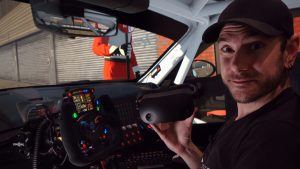
It’s worth remembering that the triple 65-inch rig was well over $100,000 of hardware when we built it in 2020. The rig in this video, a Simucube 3 Ultimate, Simucube ActivePedal, BDH shifter and Qubic System QS-V20 motion platform, is genuinely the best of the best right now and costs barely half that. The cost of the high end keeps falling. Give this five to ten years and it’ll be within reach for many racers.

Pros

Cons

Apple Vision Pro Sim Racing FAQ

Does the Apple Vision Pro work with iRacing?

Yes. iRacing has a native visionOS app called iRacing Connect that streams the sim from your PC to the headset over Wi-Fi using CloudXR, and overlays your real hands on the virtual steering wheel. You set the iRacing UI display mode to CloudXR, open the app on the headset, and it finds your PC on the network automatically.

Can you use the Apple Vision Pro for PC VR sim racing?

Not natively. There's no wired PC VR mode and no video input. A third-party app called KRVR presents itself to Windows as an OpenXR runtime, which lets you run other VR-capable sims, but it's still streaming over your network rather than using a direct connection.

Do you need a special network for Vision Pro sim racing?

Yes, and it's the part most people underestimate. Because everything is streamed, you need a fast, low-latency network. We run the sim PC wired into a 10Gb switch with the headset on a Wi-Fi 6 network and the router sitting right beside the rig, plus some port and firewall changes. On a typical household network you'll struggle.

Can you see your real steering wheel in the Apple Vision Pro?

Partly. Both apps overlay your real hands and arms into the virtual cockpit. KRVR goes further with hand discs and freehand masks that let specific real-world areas, including your physical wheel, show through. Because masks don't rotate with the wheel, it isn't a complete solution yet.

Does the Apple Vision Pro work with a motion rig?

Yes, but only with VR motion compensation. The Qubic System QS-V20 we tested on has VR Headway built in, which maps the rig's range of motion and compensates for it. Without compensation of some kind, the real and virtual worlds desync badly and it becomes unusable.

Is the Apple Vision Pro better than triple screens for sim racing?

Not today. The 3D depth, the ability to look around the cockpit, and seeing your own hands and feet are all far more immersive than any screen can manage. But passthrough resolution, streaming compression, latency and headset weight mean triple screens remain the more practical choice for most sim racers now. Particularly for content creation.

Is the Apple Vision Pro worth it for sim racing?

No. At AU$7,500 it can't be justified as a sim racing purchase, and cheaper headsets do a better job as a racing display. It's worth understanding as a preview of where the technology is going, not as something to buy.

What is KRVR?

KRVR is a third-party visionOS app that acts as an OpenXR runtime, allowing any OpenXR-capable sim to be streamed to the Apple Vision Pro. It adds a set of mixed reality tools that iRacing Connect doesn't have, including passthrough discs around your hands, ring tuning, and freehand masks you draw in mid-air.

How much does an Apple Vision Pro cost?

AU$7,500 at the time of filming.

Related Articles

MORE REVIEWS and Discounts

If these Sim Racing Reviews have helped you find the best racing simulator gear for your sim rig, please consider using the affiliate links on this website. By purchasing through these links, a small commission will come back to Boosted Media at no additional cost to you. This is how Boosted Media keeps providing content to the Sim Racing community.

About The Authors

  • Tom Ford

    Tom Ford operates Boosted Media with his brother Will and produces all Boosted Media sim racing videos and written articles. A true motorsport fanatic with a professional background in engineering and media, he works closely with Will across testing and analysis, turning extensive product evaluations into clear, practical reviews and buying advice for sim racers.

  • Will Ford

    Will Ford operates Boosted Media with his brother Tom and is the on-camera host and technical lead behind the channel’s sim racing hardware reviews.

    With a background in electrical engineering, adult education, and automotives, he combines hands-on product evaluation with practical technical analysis and a passion for motorsport and sim racing to explain how sim racing hardware performs in the real world, and is one of the most experienced people on the planet when it comes to reviewing Sim Racing Hardware.